




AI Image Upscaler
Upload a photo, choose a size and enlarge it while preserving its proportions.
AI Image Upscaler
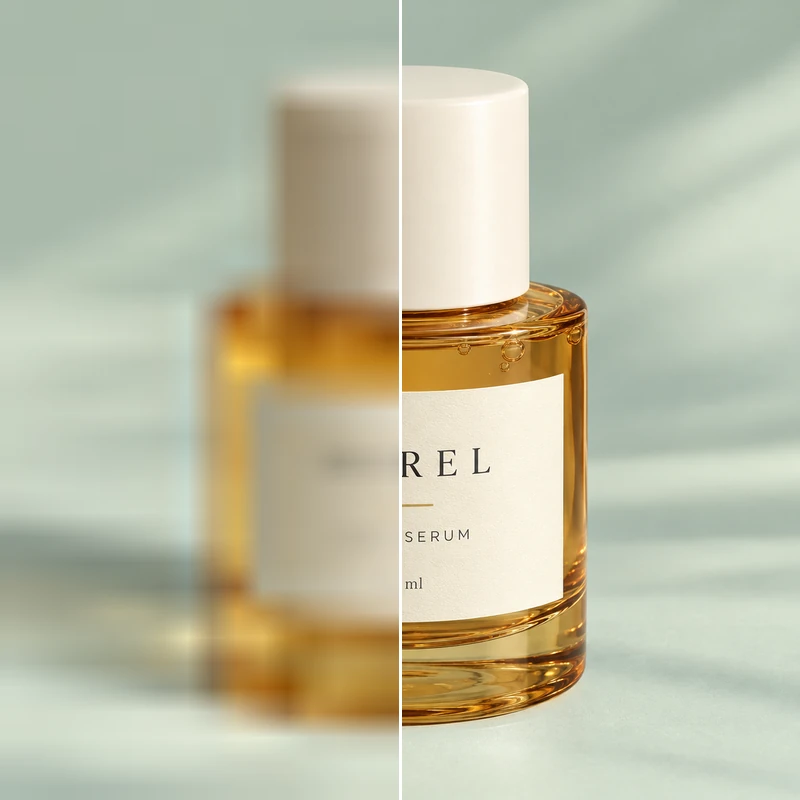
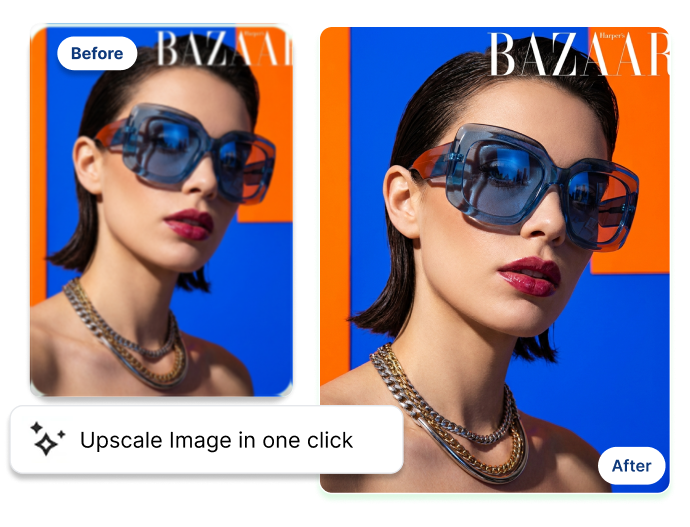
Have a small photo that turns soft or hard to inspect when you zoom in? Use an AI Image Upscaler to choose 2×, 4×, or 8× enlargement, then decide whether to keep the source look in focus or bring more detail forward.
AI Image Upscaler
Use the AI Image Upscaler in Three Clear Steps
Upload the photo you have, choose how far to enlarge it, and select a detail treatment before you generate. The AI Image Upscaler puts the key choices in one straightforward flow.
1. Upload the Original
Add a JPG, PNG, or WEBP image up to 10 MB, or pick a demo image to explore the controls. Start with the photo you want to enlarge.
2. Choose 2×, 4×, or 8×
Select the amount of enlargement that fits the next view. Choose a smaller step for a modest size increase, or 4× or 8× when you need substantially more room to inspect the image.
3. Choose the Detail Treatment
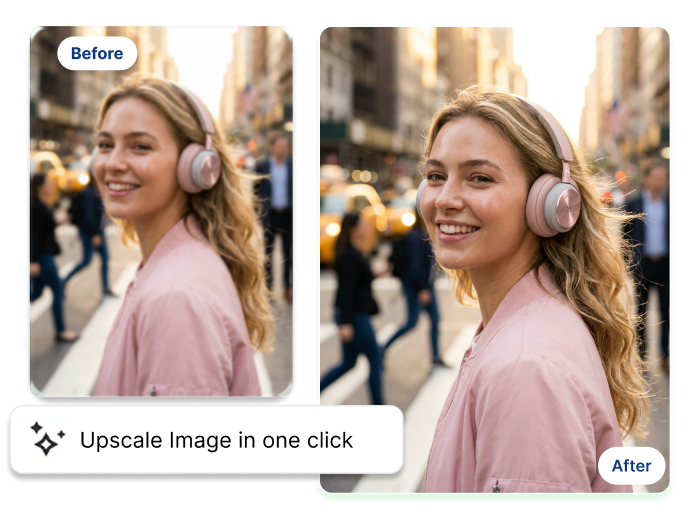
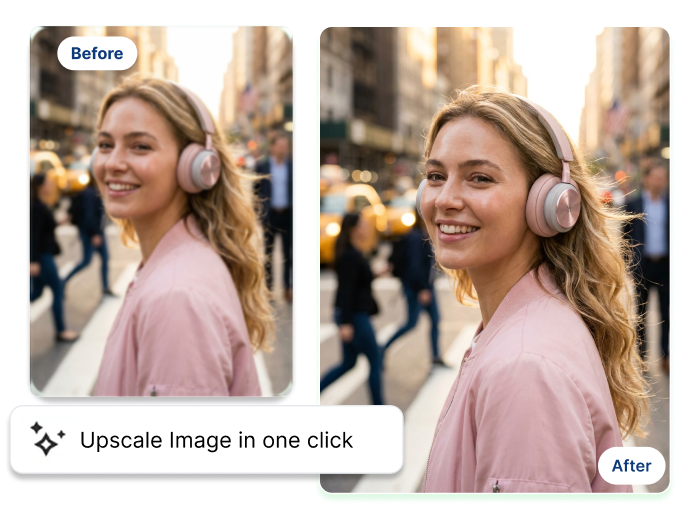
Select Faithful Upscale when you want the source look to lead, or Smart Enhancement for a more pronounced detail treatment. Turn on Generate Detail Shots for a closer view, and choose Crop Visible Details Only to keep crops within the image frame.
What an Al Image Upscaler Lets You Decide
Upscaling is not just making pixels bigger. It is choosing how closely the finished image should stay with the original.
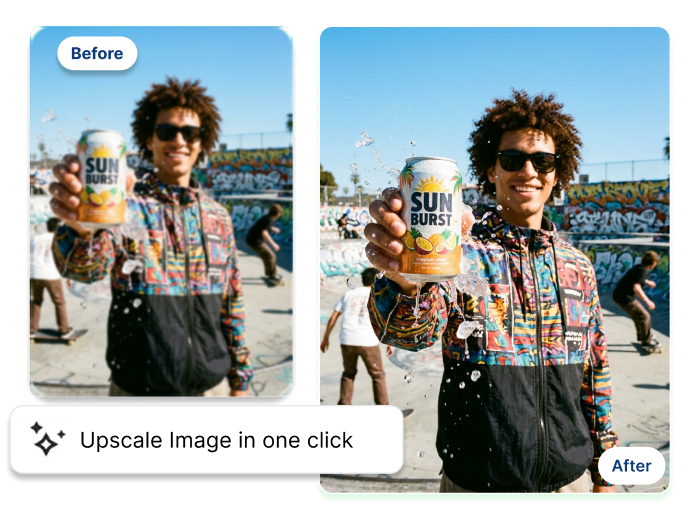
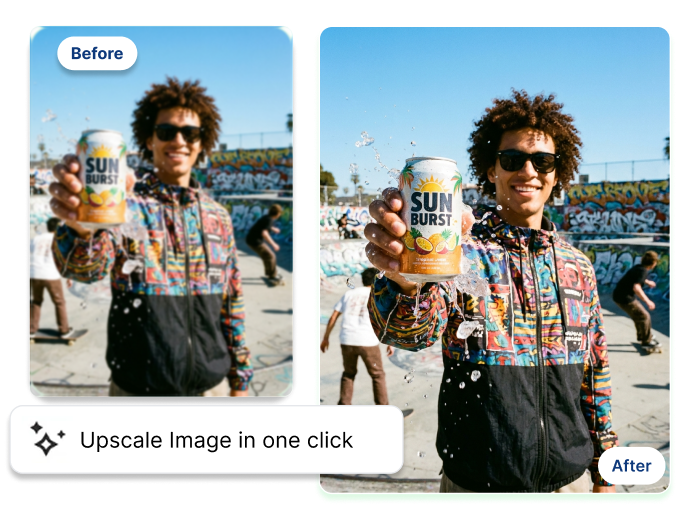
Select 2×, 4×, or 8× Before Generating
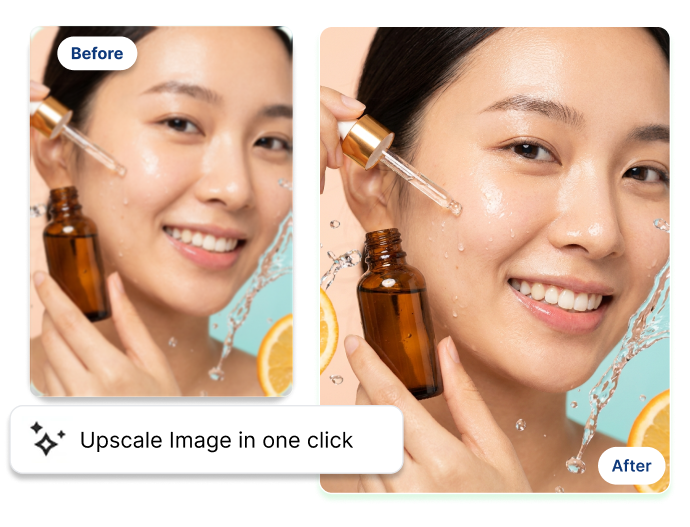
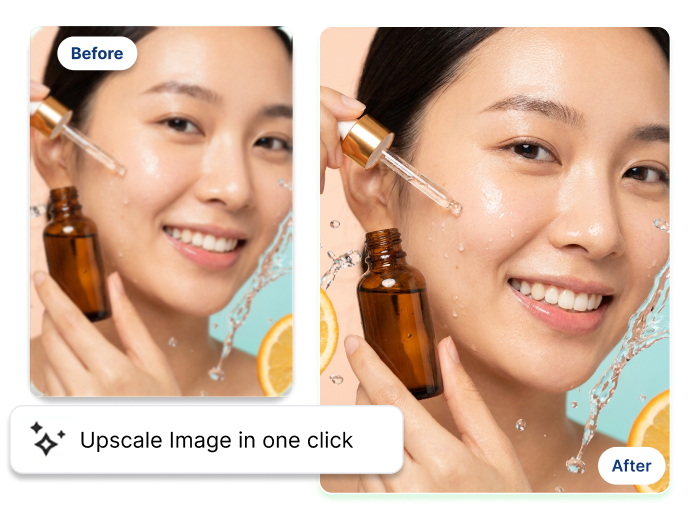
Keep the Source Look in Focus—or Enhance Details
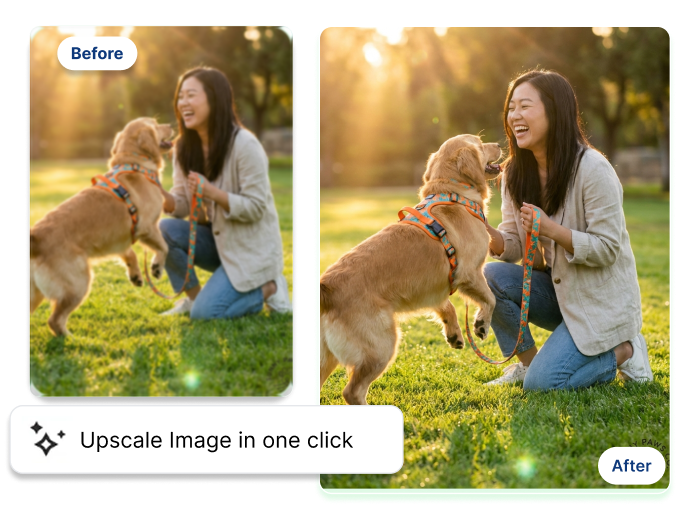
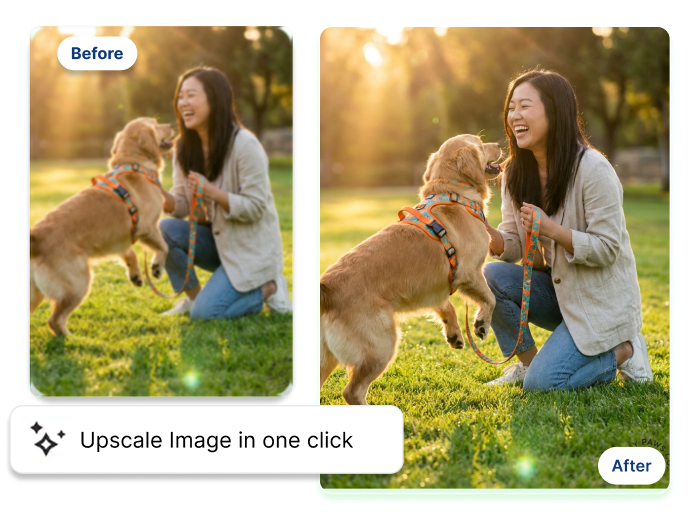
Generate Detail Shots from Visible Areas
Upload a Photo or Try a Demo First
Who Uses an AI Image Upscaler?
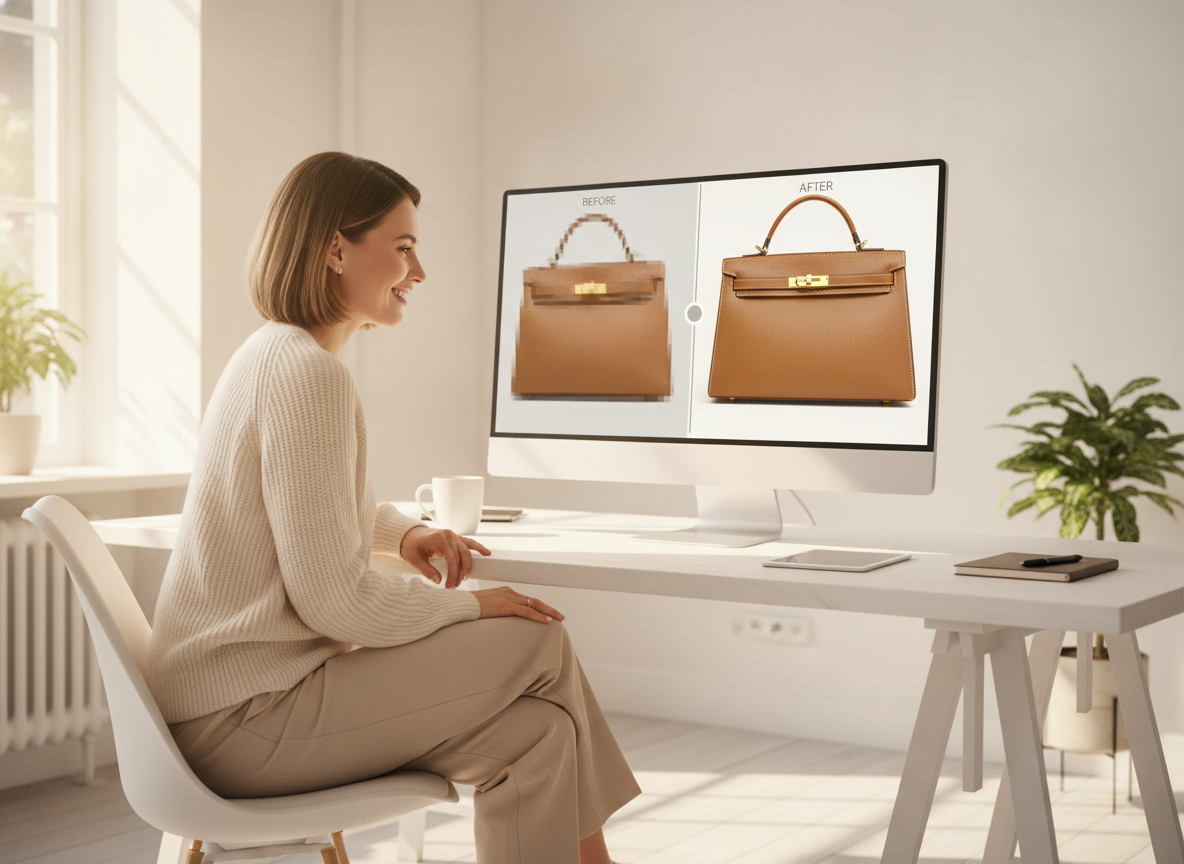
E-commerce and Brand Teams
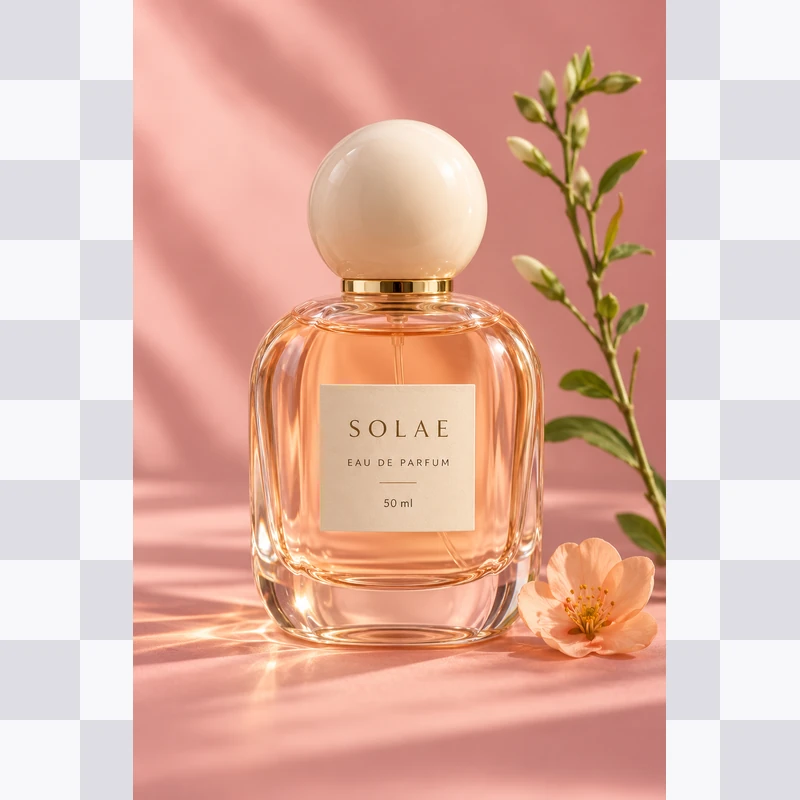
A small product photo can make it hard to inspect a finish, stitch, package shape, or hardware detail. Choose a scale and treatment for an image you already have before deciding whether it suits a listing, campaign layout, or product review.
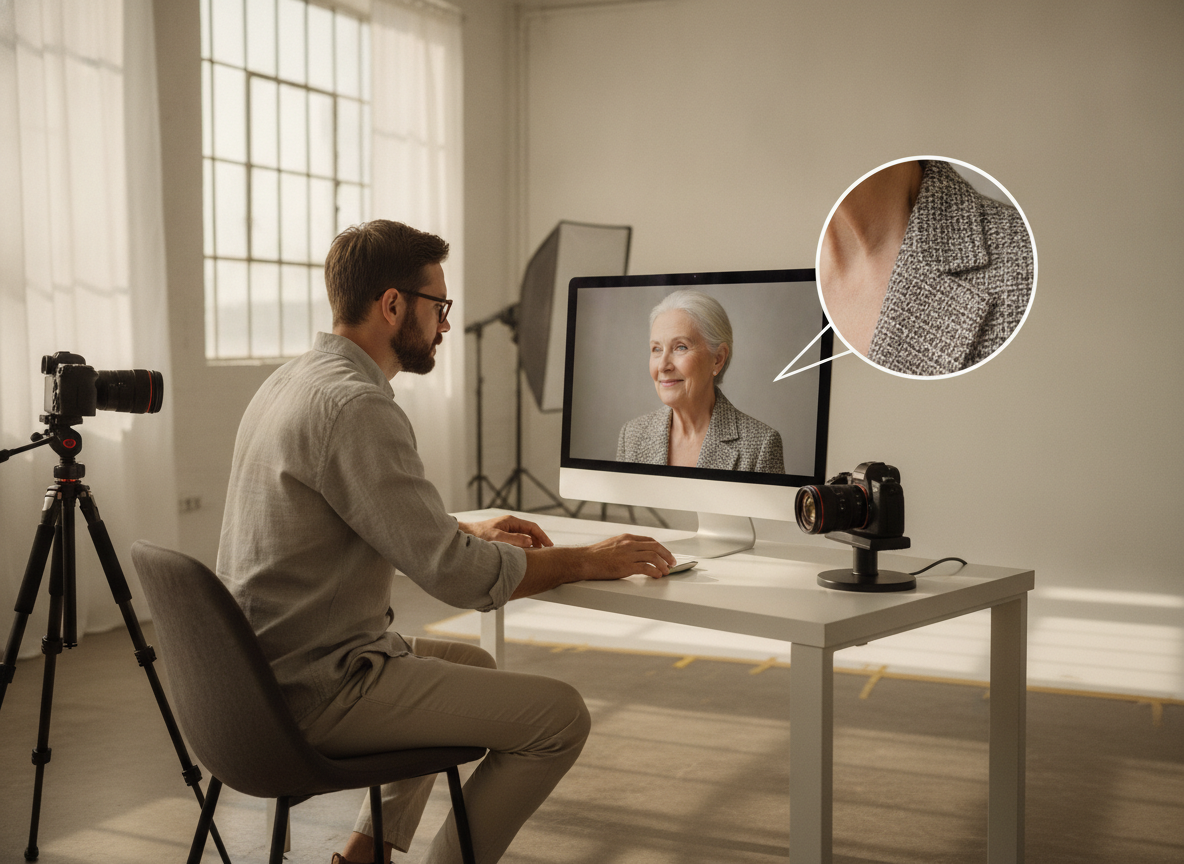
Designers and Creative Teams
When an asset feels too small inside a mockup or presentation, enlarge it at a chosen scale and check close-up views of visible details. The controls help you decide how much room the image needs before it goes into a wider composition.
Photographers and Visual Collectors
Want a closer look at a favorite camera shot, object study, or everyday photo? Select Faithful Upscale or Smart Enhancement, then use optional detail shots to inspect texture without turning the task into a full photo-editing session.
FAQs
What does an AI Image Upscaler do?
How do I upscale an image online?
What is the difference between Faithful Upscale and Smart Enhancement?
Will it distort faces or text in my pictures?
Is there a free AI image upscaler to try?
How high can I upscale my images?
Can I try the upscaler without uploading a photo?
Can I generate close-up detail shots?
Do I hold the commercial rights to the upscaled images?
Give a Small Image More Room to Show Its Details
Upload an image, choose 2×, 4×, or 8×, and decide between Faithful Upscale and Smart Enhancement. Try the AI Image Upscaler with free credits and review which detail treatment suits the photo you want to enlarge.