

AI LinkedIn Headshot Generator
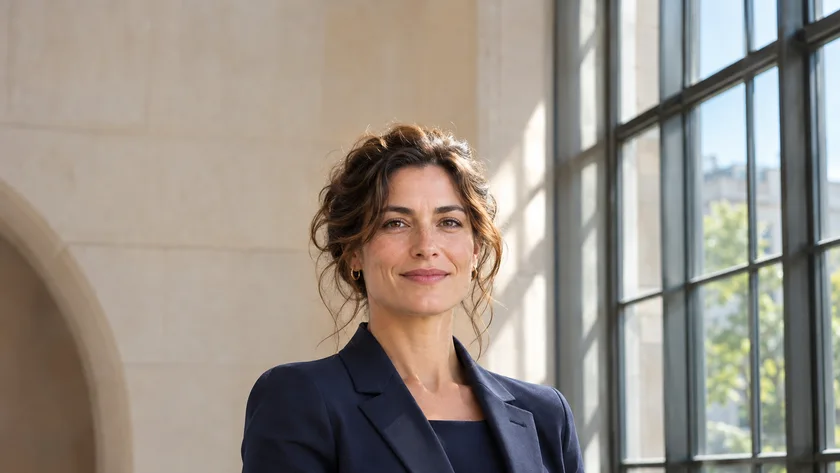
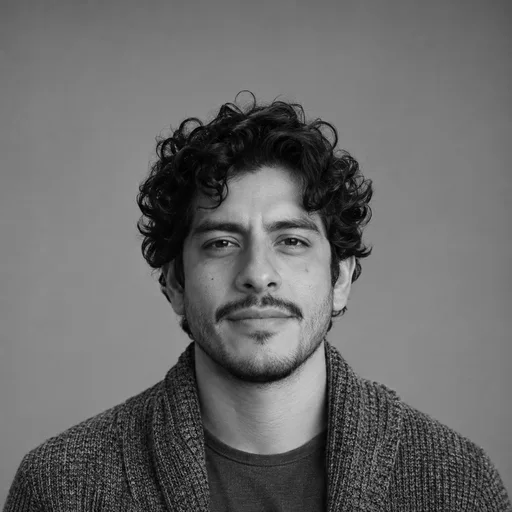
Use a reference photo to create an AI LinkedIn headshot. Compare window light, monochrome and color portraits, then review facial details before choosing your profile image.

Try a demo
Explore related LinkedIn headshot tools
How to use the AI LinkedIn Headshot Generator
- 01
Give the AI a clear reference
Upload a photo that shows your usual hairstyle, glasses and expression. You can also select a demo photo to explore how the controls work.
- 02
Choose one change to explore
Start with a different lighting or background style. Keep the same source photo between runs so you can see how that choice affects the portrait.
- 03
Review the details at full size
Check the hairline, eyes and edges of glasses in the preview. Download your preferred result or open My Creations to compare it with a previous run.
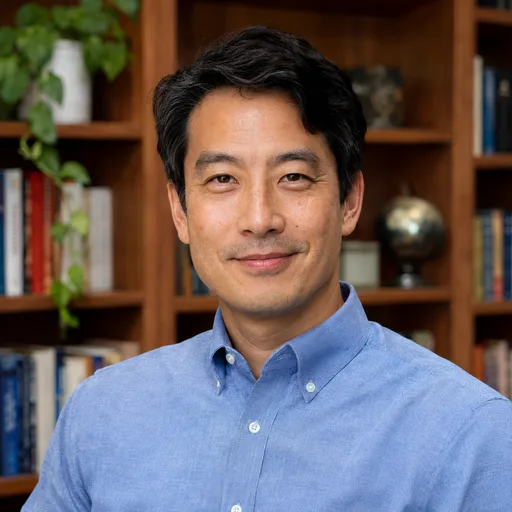
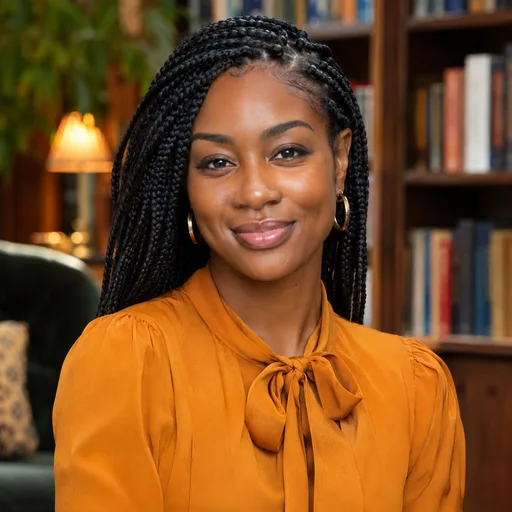
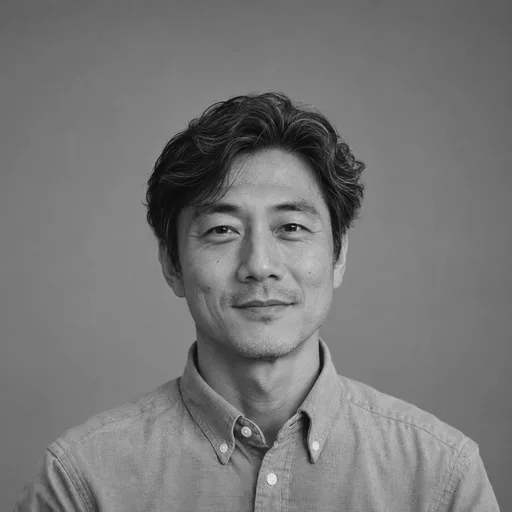
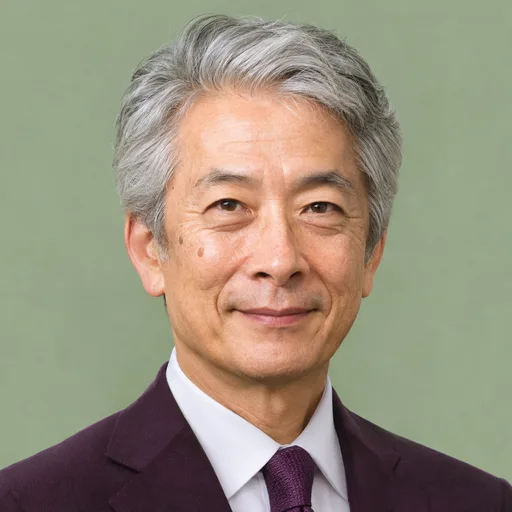
AI LinkedIn Headshot Generator examples
Look at what changes when light falls from the side, the background is plain or shelves add depth behind a face. Filter the portraits by treatment.















AI LinkedIn Headshot Generator FAQ
How does the AI use my reference photo?
The generator uses the uploaded face as its identity reference while applying the selected portrait style. Review the result for familiar features before using it on your profile.
How can I get a more natural-looking portrait?
Use a sharp photo without a heavy beauty filter. A soft window-light style works well when you want gentle shadows and visible skin texture.
Where can I find an earlier AI headshot?
Each submitted generation has its own execution record in My Creations. Generating a new portrait updates the preview on this page.
Create your next LinkedIn headshot
Choose a clear photo, explore a portrait style, and find a look that feels like you.
Create my headshot