


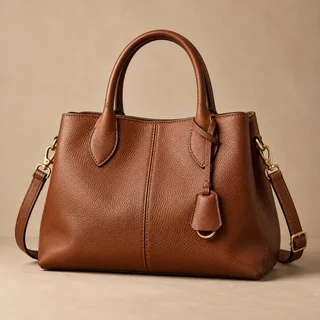


AI Product Photography
Upload one product photo, pick a scene and get professional shots from different angles, with your product kept exactly as it is.
AI Product Photography: store-ready product photos from one snapshot
Upload one product photo, pick a scene, and AI Product Photography places your product in a new, realistic setting. You get 1 to 4 photos per run in the same scene from different camera angles, at 1:1, 4:5, 9:16 or 16:9, ready for your store and your ads.
- Nine scenes: Auto, White Background, Studio, Home, Outdoor, Festive, Podium, Marble and Water
- Your product's shape, colors, label and logo kept as uploaded
- 2K PNG downloads at 7 credits per photo
Five products, five scenes
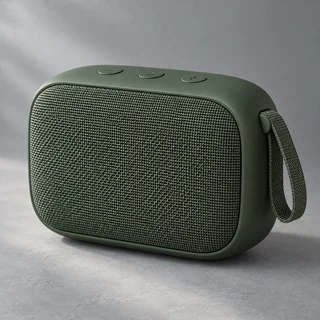
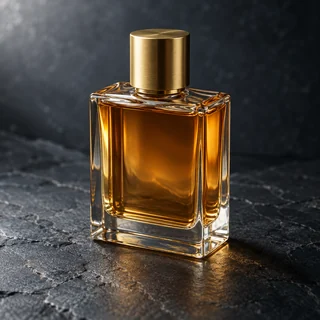
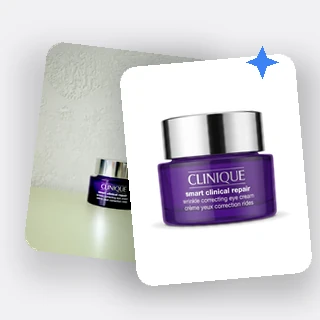
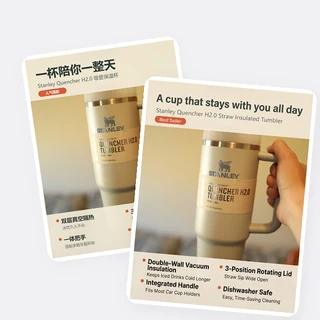
Real results from AI Product Photography: five product photos, each run once with a different scene and aspect ratio. Every tile shows the uploaded photo in the corner.
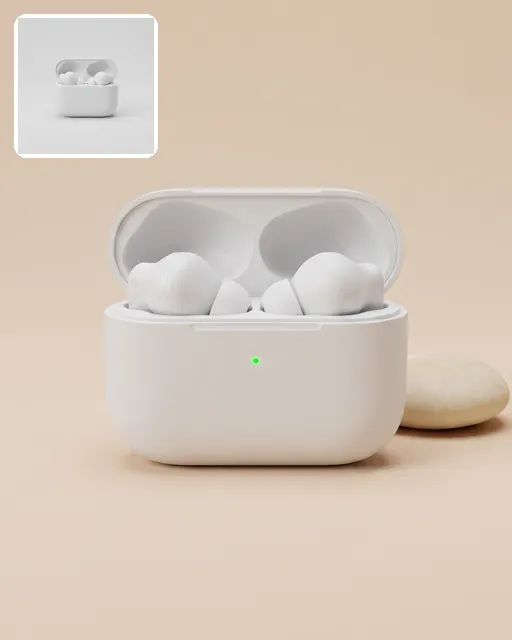
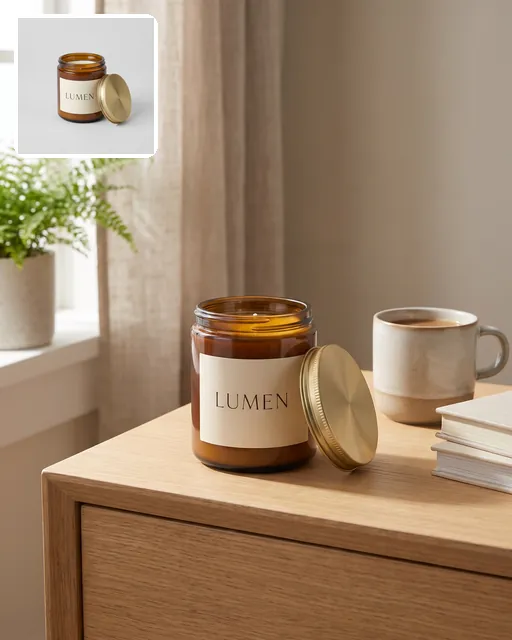
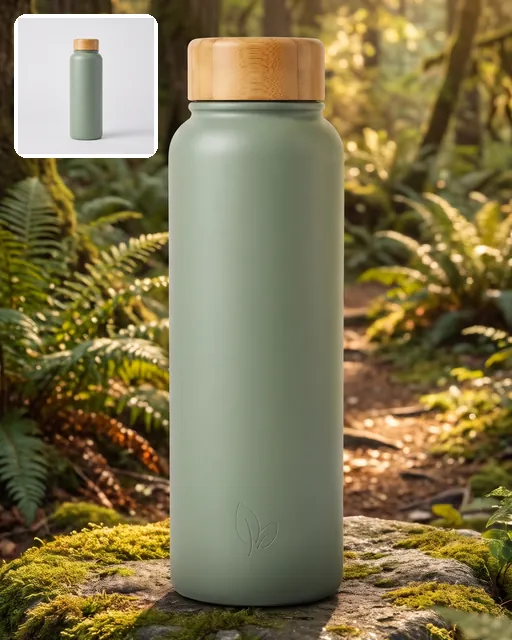
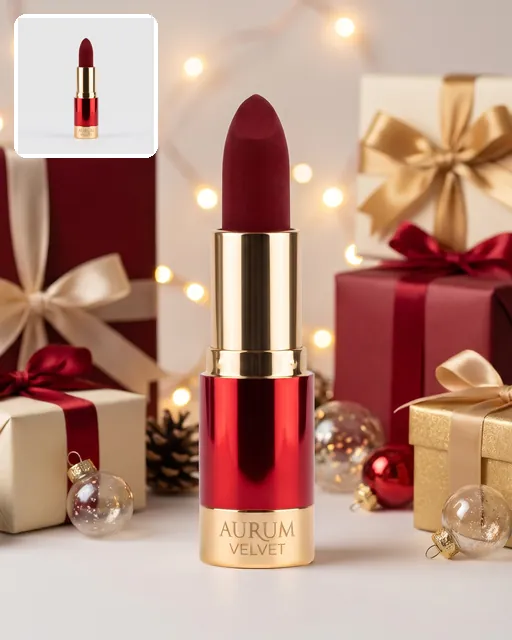
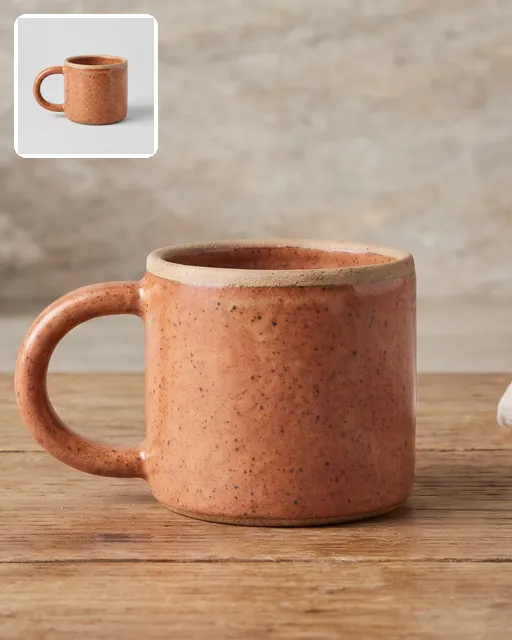
Input: one product photo and one scene per run, nothing typed. Output: 2K PNGs at Studio 1:1, Home 4:5, Outdoor 9:16, Festive 1:1 and Auto 16:9, cropped to one tile shape here. With Auto, the AI placed the mug in a rustic kitchen.
Make product photos in three steps
Every run in AI Product Photography follows the same three steps.
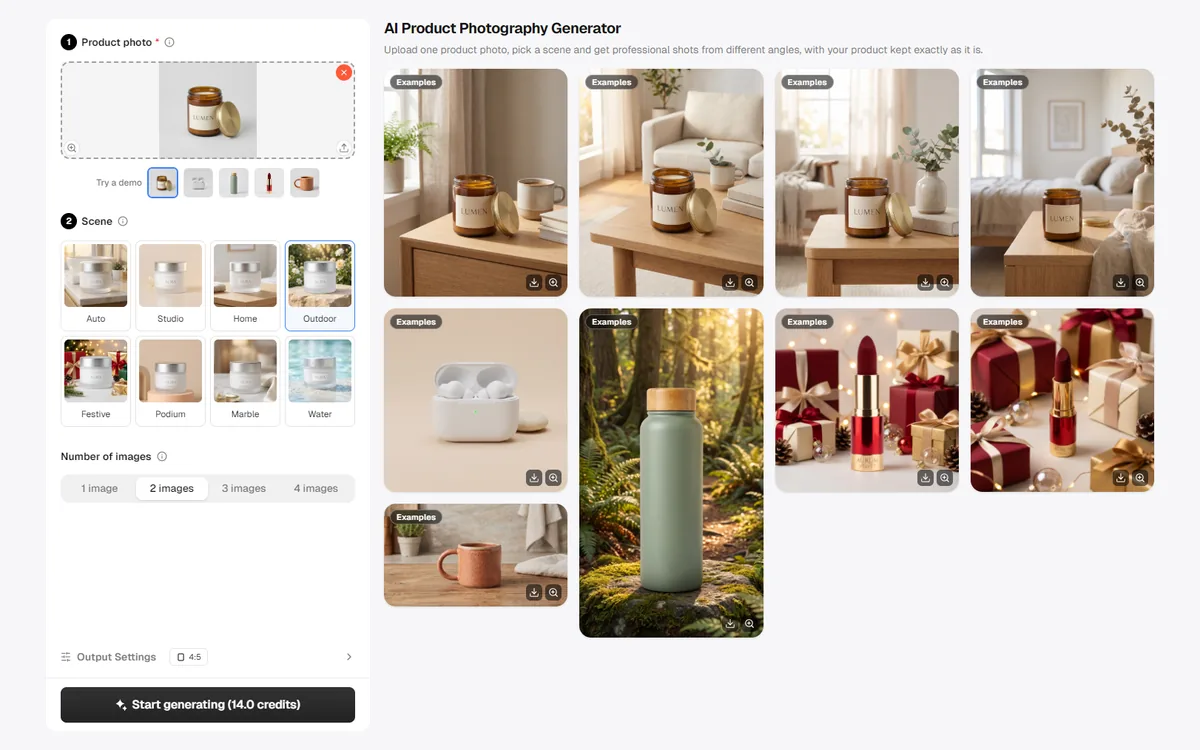
Upload your product photo
Add one clear JPG, PNG or WEBP photo up to 10 MB, at least 256 pixels on each side, with the whole product visible. The background does not matter much: a new scene is built around the product.
Pick one scene
Choose Auto to let AI pick a fitting real-world setting for your product, or choose White Background, Studio, Home, Outdoor, Festive, Podium, Marble or Water yourself. Every photo in the run uses this one scene.
Set the output and generate
Below the scene, set Number of images to 1, 2, 3 or 4, then pick 1:1, 4:5, 9:16 or 16:9 in Output Settings. Start generating shows the credit total first, and each finished photo appears as its own card, ready to download as a PNG.
Nine scenes, or let Auto decide
Not sure which setting suits your product? With Auto, AI Product Photography picks a believable place where this kind of product is used, such as a bathroom vanity for skincare or a desk for electronics. If you prefer to choose, the other eight scenes each give a clear, consistent look.
- Studio and Podium: a seamless one-color backdrop, or a pastel plinth with geometric shapes
- Home, Outdoor and Water: a bright room, daylight outdoors, or shallow clear water with ripples
- Marble and Festive: veined marble with a gold tray or silk, or gifts that never cover the product
Up to four angles of the same scene
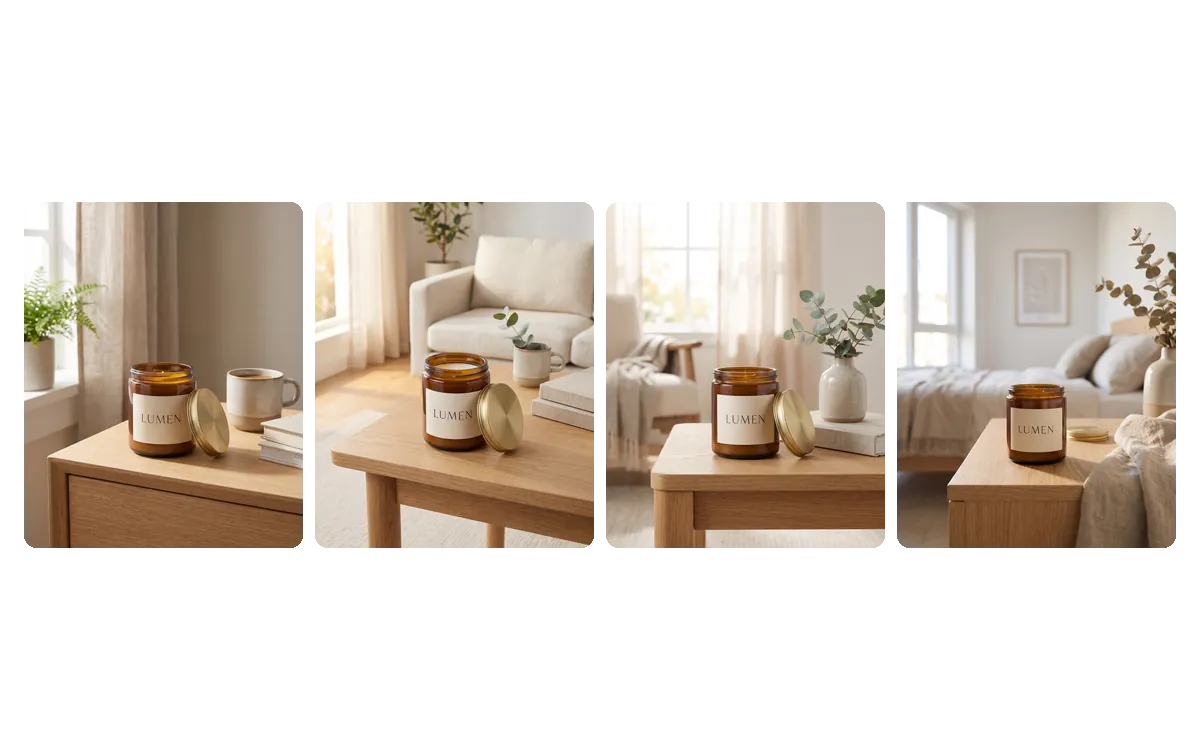
Set 2, 3 or 4 photos and AI Product Photography keeps the scene and aspect ratio of the run while changing the camera: eye level, three-quarter view from above, close-up and wide shot. You get a matching set for a product gallery instead of near-copies of one picture.
- One photo by default, up to four per run
- Same scene and ratio across the set, so the photos sit well together
- 7 credits per photo: four photos cost 28 credits
How sellers use it
Three everyday jobs AI Product Photography is built for.
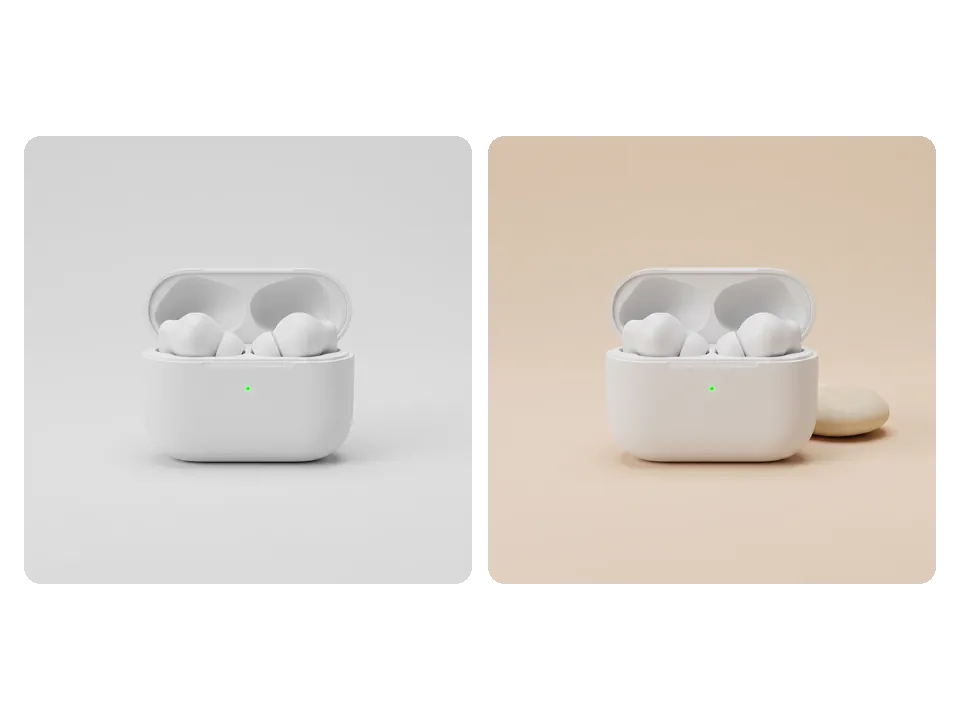
Photos for store listings
A Shopify seller uploads a plain photo of wireless earbuds and picks Studio at 1:1. The soft beige backdrop and even light give the product page a consistent, professional gallery image next to the other listings.
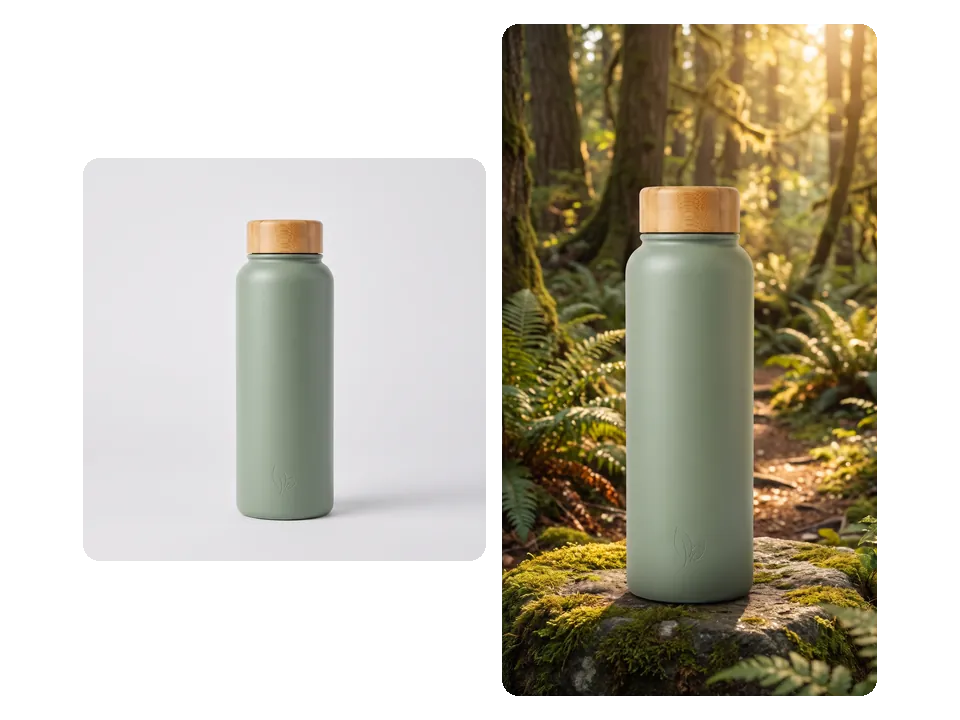
Vertical photos for TikTok Shop
A drinkware shop picks Outdoor and 9:16 for an insulated bottle with a bamboo lid. The full-screen vertical photo shows the bottle on a mossy rock on a sunlit forest trail, ready for a TikTok Shop listing or a Stories post.
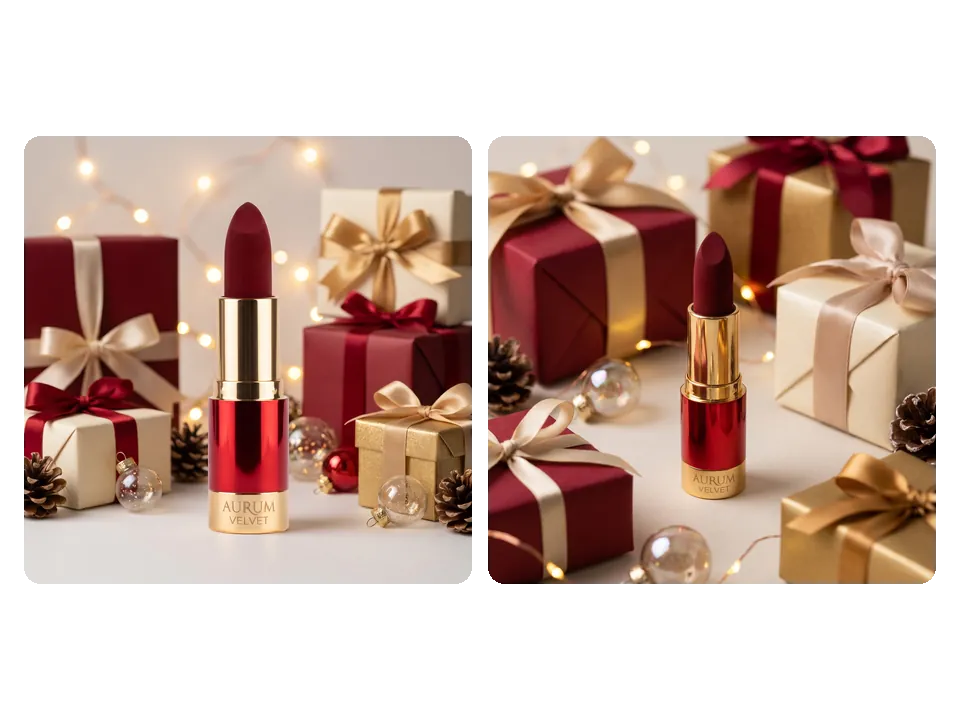
Holiday campaigns
A beauty brand picks Festive at 1:1 with two photos of its lipstick before the holidays. Both show it among gift boxes, ribbons, pine cones and fairy lights from different angles: one for the Etsy listing, one for a feed ad.
Frequently asked questions
What kind of photo works best with AI Product Photography?
Use a sharp, well-lit JPG, PNG or WEBP photo up to 10 MB, at least 256 pixels on each side, where the whole product is visible and not cut off by the edges. One product per photo works best. The original background is replaced by a new scene, so it can be plain or busy.
How many credits does AI Product Photography use?
Each photo costs 7 credits, multiplied by the Number of images you set below the scene. One photo, the default, costs 7 credits, and four photos cost 28 credits. The total is shown on the Start generating button before anything is submitted.
Will my product be changed?
The tool is built to keep your product's shape, proportions, colors, label and logo as they appear in your photo. Only the setting, the light around it and the camera angle are new, and scenes are set up without people, extra text or watermarks. Still check every photo before you publish it.
Can each photo in a run have a different scene?
No. Every photo in one run shares the scene and the aspect ratio you picked; only the camera angle changes, from eye level to a three-quarter view from above, a close-up and a wide shot. For Studio and Outdoor photos of the same product, start two runs with the same photo.
Can I make Amazon-ready main images on a white background?
Yes. Pick White Background: the product stands alone on a pure white background (RGB 255, 255, 255) with a soft, natural shadow and fills most of the frame, as Amazon and similar marketplaces ask for main images. After generation the background is cleaned to exact white. For a standard main image, choose 1:1 in Output Settings.
What happens if a photo is not delivered?
AI Product Photography charges per delivered photo. If one photo in a run cannot be delivered, its 7 credits are refunded automatically, and if no photo is delivered the whole run is refunded. Finished photos stay in your creation history, so you can download them again later.
What size are the photos from AI Product Photography?
Every photo is a 2K PNG in the aspect ratio you picked: 1:1 for product listings, 4:5 for feed posts, 9:16 for full-screen vertical placements or 16:9 for banners. A 1:1 photo is 2048 × 2048 pixels. Hover a finished card to download it.
Give your next product a professional photo
Sign in, upload a product photo, and AI Product Photography shows the credit total before anything is generated.